
Обобщенный банк данных «Мемориал» - банк данных о защитниках Отечества, погибших, умерших и пропавших без вести в период Великой Отечественной войны и послевоенный период. Подробнее о проекте
Help
Aim and purpose of OBD “Memorial” website
OBD “Memorial” website provides access to the database of persons, burials and documents, related to irrecoverable losses. The search is performed through a united data bank, which contains information about the defenders of the Fatherland, reported dead or missing during the Great Patriotic War and the post-war period. Use Microsoft Internet Explorer 10, Mozilla Firefox 4, Google Chrome 5, Opera 11.5, Safari 5.0.
OBD “Memorial” Main page
The interface of the main page:
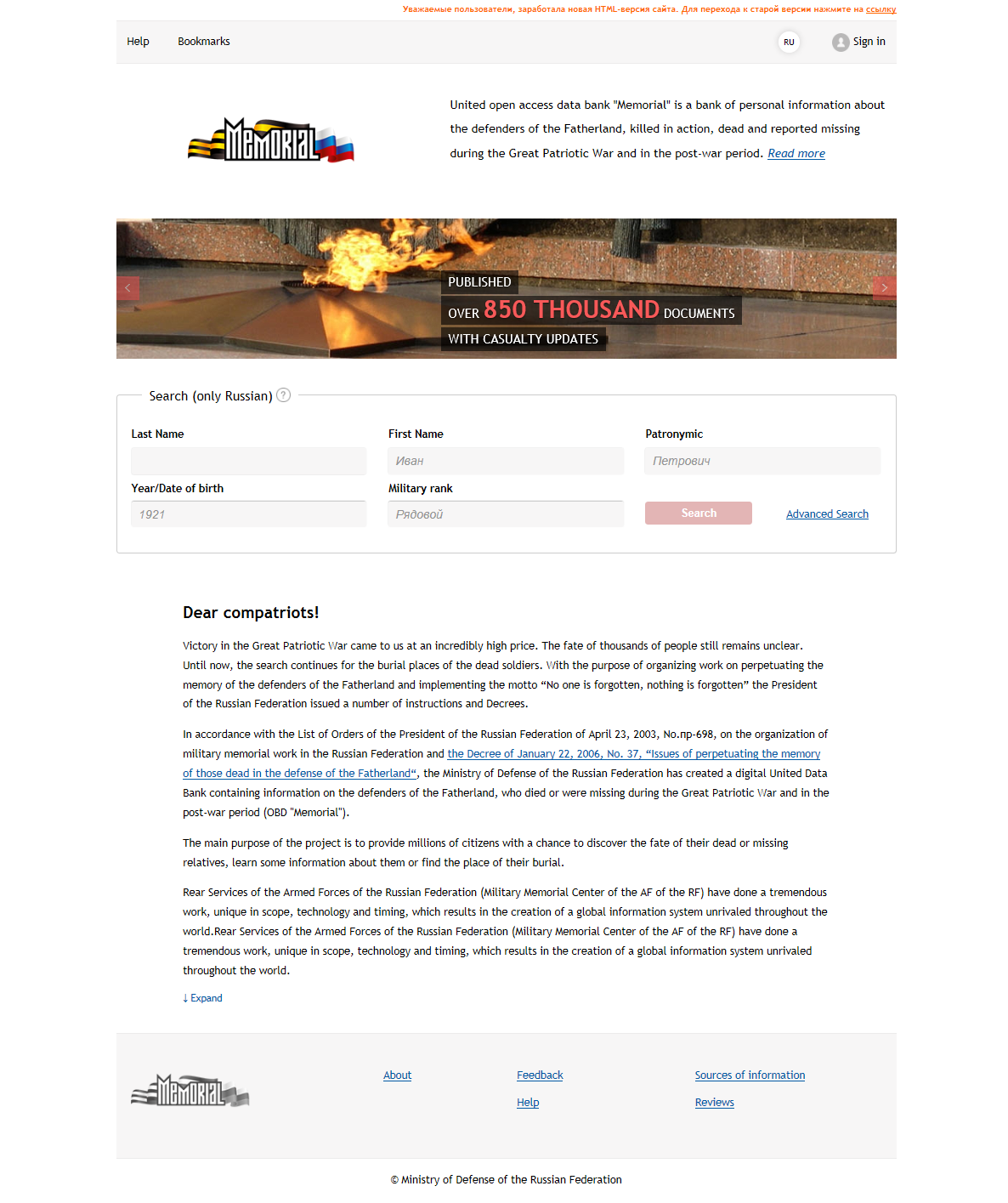
Links at the top of the page:

- Help - to navigate to a page containing a description of the rules search for the information on the website;
- Bookmarks - to generate and view the list of records that caused the user's interest.
Button at the top of the page:
 - button to authorize. Login button for registered users and a link to the registration page. The registration system allows the user to request additional information and to search personal files and reports;
 or
or
 - button language selection.
The search area is in the central part of the page.

- Search – quick search for personal information (only Russian);
- Advanced Search- go to the page of Advanced Search for personal information with full-text search and select information sources options.
Navigation project at the bottom of the page:

- About - learn about the Project mission and the contents of the website;
- Feedback - send messages to the website technical support;
- Sources of information - learn about the information sources, which constitute the united data bank;
- Help - view the description of the rules of information search on the website;
- Reviews - view reviews on website.
Registration
Registration procedure:
-
click button ;
Open the window user authorization.
-
click Register;
User registration window opens.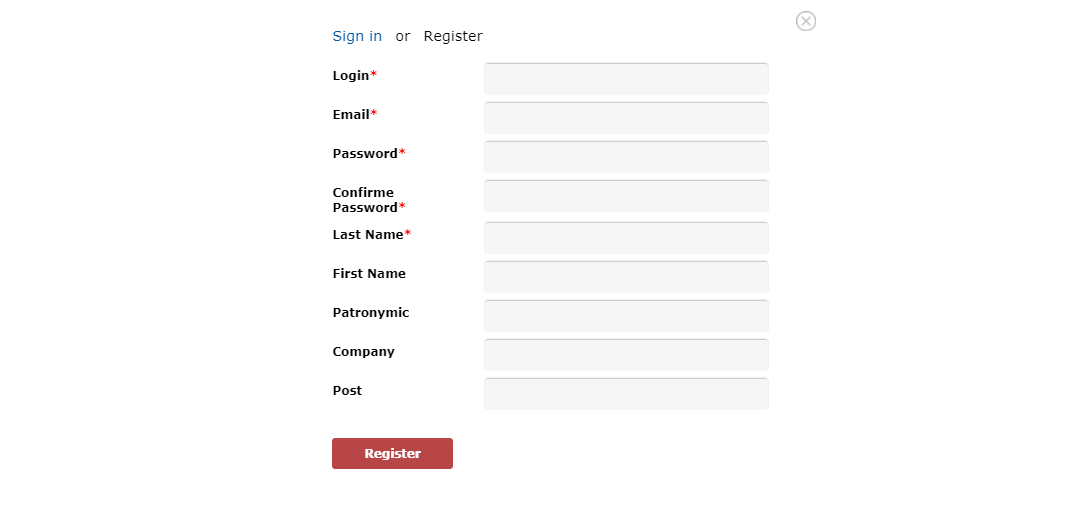
-
fill in the user details;
Notice:- Fields marked with «*» are required.
- No space is allowed in Login and Password, fields.
-
click the Register button;
e-mail will be sent to the address provided in the corresponding field of the registration window. It will contain a link to confirm the registration of the account. - follow the link to complete registration.
Authorization
Authorization is required to use the advanced search options of “OBD Memorial”:
-
click button ;
Open the window user authorization.
- type in the Login (email) and Password;
- click button «Enter».
Search
Before you start working with the information, it is recommended to read the rules of entering of data into the search fields. See ”Search function".
The search can be performed both at the Search and Advanced Search.
Search Fate
To find a person you need to fill in at least one field, then click Search or press Enter.
The entries found will be displayed on the search results page.
To narrow your search results, you must go to advanced search by clicking the link "Advanced search".

Advanced Search
Advanced Search allows you to use additional search options. To open the Advanced Search page,
follow the link «Advanced Search», in the search area of the Main page of the site.
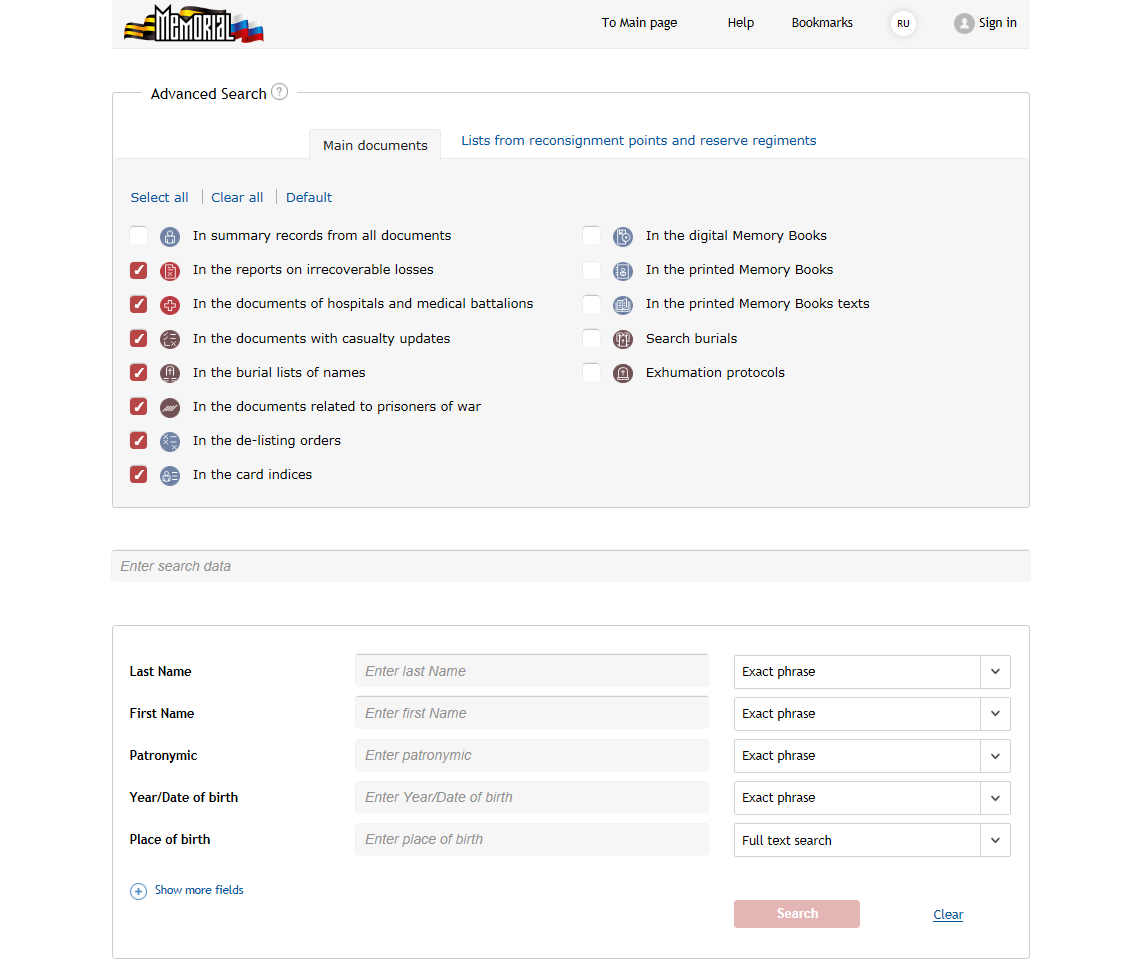
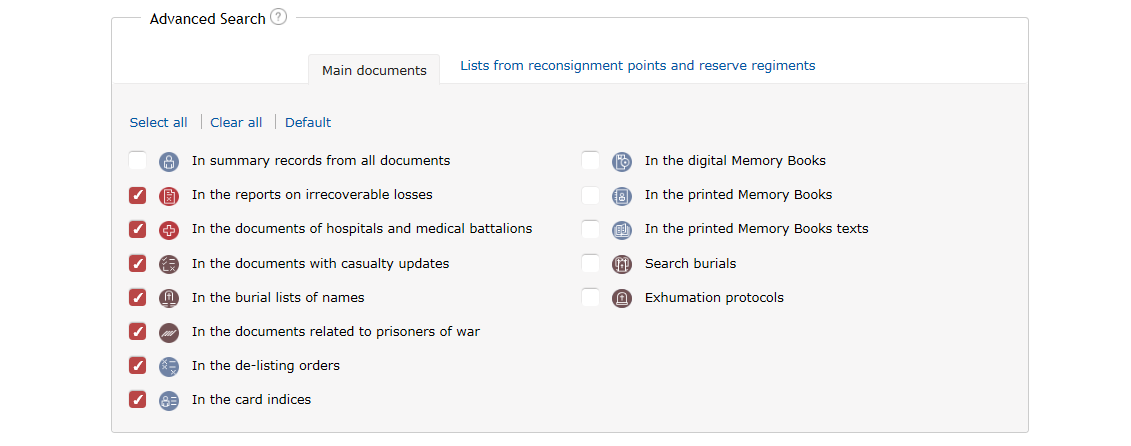
When using the Advanced search mode, you can select the following search areas:
-
 - In summary records from all documents;
-
 - In the reports on irrecoverable losses. Information source by default;
-
 - In the documents of hospitals and medical battalions. Information source by default;
-
 - In the documents with casualty updates. Information source by default;
-
 - In the burial lists of names. Information source by default;
-
 - In the documents related to prisoners of war. Information source by default;
-
 - In the de-listing orders. Information source by default;
-
 - In the card indices. Information source by default;
-
 - In the digital Memory Books;
-
 - In the printed Memory Books;
-
 - In the printed Memory Books texts. No additional search fields are available in this mode;
-
 - Search of burials;
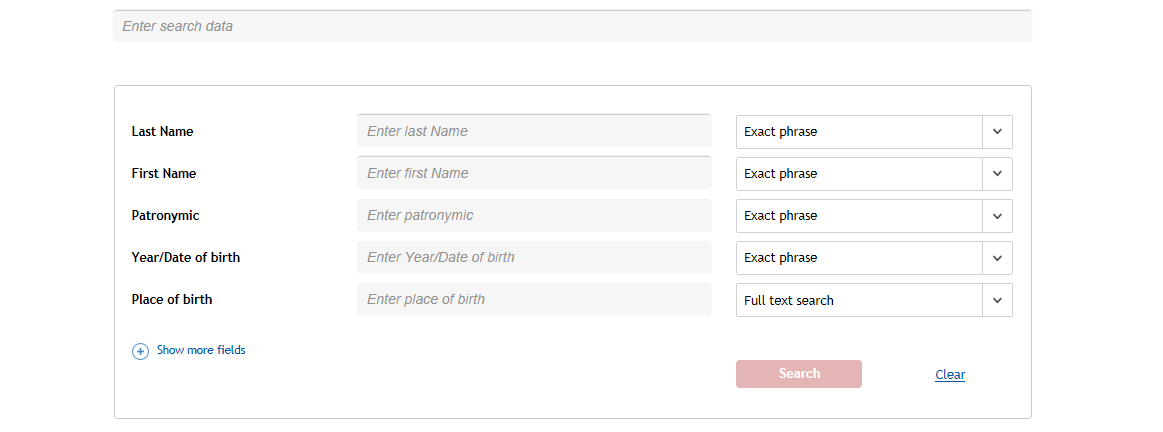
When using Single-line search mode, the user can specify all known information in the full-text search field.

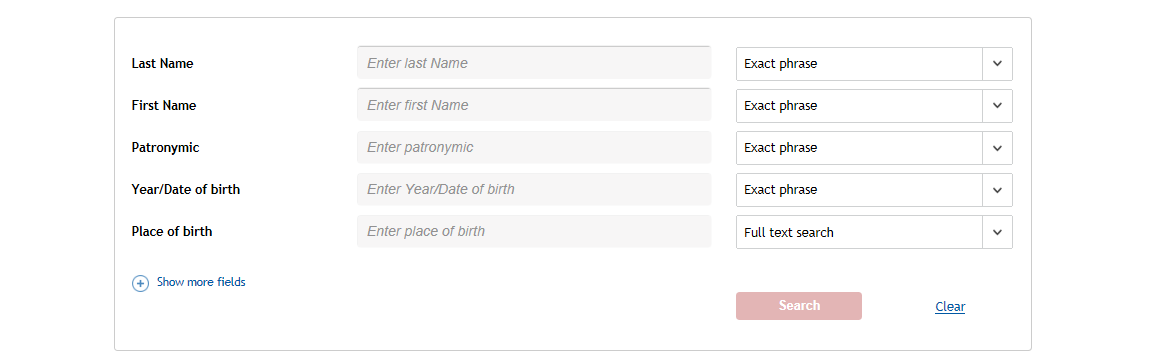
When using the Attribute search mode, the user fills in the known information in the appropriate fields.
Notice:
Full-text search field allows you to enter not only the Last Name, First Name and Patronymic, but also
any information that specifies the Year of birth, Place of birth, Rank, etc. The search is carried out
throughout all the fields of the database. In this case, in the list of search results will display
the records, in which all the values entered in the query are present.
When using the Attributive search mode, the user can determine the search method for each field:
- From beginning - to search for documents that at the beginning of the corresponding index field will contain the value specified by the user in the search field;
- Exact phrase - to search for documents that in the corresponding index field contain a value consisting of one or more words (or digits) in the same order as specified by the user in the search field;
- Exact field - to search for documents that in the corresponding index field contain the exact value as specified by the user in the search field;
- Full text search - to search for documents that in the corresponding index field contain information specified by the user in the search field, disregarding the sequence of words and their number.
The more information the user provides, the more precise will the Search results be.
The records found will be displayed on the Search results page.
If the search for the entered query yields no result, it is recommended to simplify the query and try again.
In the event that the person the user is looking for did not have a specific place of service
(e.g. a particular unit), the system has an option to search for personalities with the help
of the information on the passage of a soldier through reconsignment points. To do this, go to
the tab Lists from reconsignment points and reserve regiments.

Search the lists from reconsignment points and reserve regiments
To initiate a search based on the information about the passage of a soldier through reconsignment points,
go to the tab Lists from reconsignment points and reserve regiments,
at the Advanced search page; the reconsignment points search page will be opened, where you can enter the query.
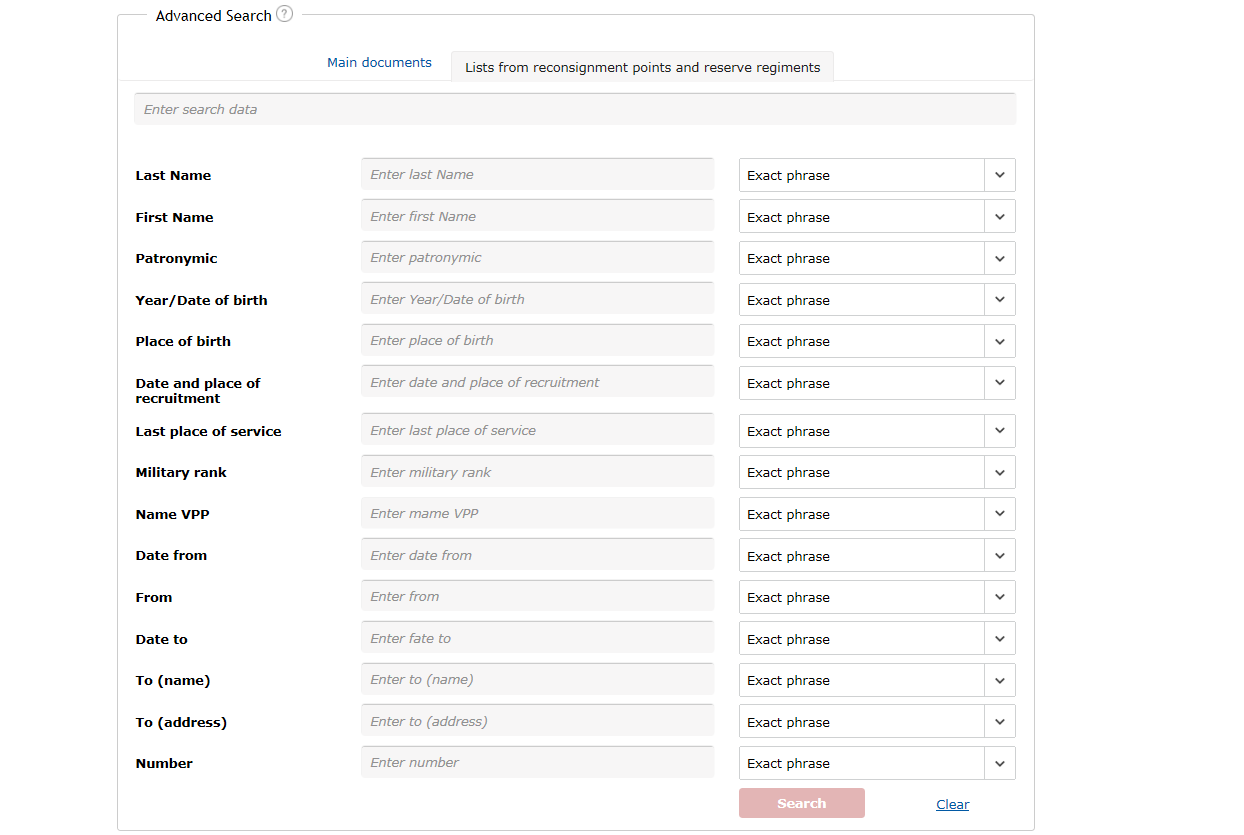
When searching for people based the reconsignment point data, it is possible to search for the entered
value simultaneously in all fields of the database or in particular fields. To search for a value
in all fields of the database, enter it in the single-line search field.
To find the value in particular fields of the database, you need to enter the required value in the corresponding fields in the center of the page.
The user can determine the search method for each field:
- From beginning - to search for documents that at the beginning of the corresponding index field will contain the value specified by the user in the search field;
- Exact phrase - to search for documents that in the corresponding index field contain a value consisting of one or more words (or digits) in the same order as specified by the user in the search field;
- Exact field - to search for documents that in the corresponding index field contain the exact value as specified by the user in the search field;
- Full text search - to search for documents that in the corresponding index field contain information specified by the user in the search field, disregarding the sequence of words and their number.
To go back to the Advanced search of main documents, click on the Main documents tab.
Search features
Asterisk *
The asterisk indicates search records with any ending of the word after the specified characters. The asterisk shall be entered strictly after a set of symbols.
The asterisk may be used in the Single-line search query, as well as in particular fields of the Full test search.
Double quotes "
Double quotes are used in the Full text search query to find records containing the exact occurrence of the phrase you are looking for. It is required that at least one word in the phrase should be longer than two characters.
Double quotes are not used when entering the query into the fields. The exact occurrence may be found using the Exact phrase mode.
Vertical bar |
Plus is used in the fields with the Full text mode only. It is logical operator OR.
Viewing the search results

When making the query in “Search” mode, you can include / exclude the Memory Books search area.
View personal information
To View personal information, point at the corresponding record in the list of Search results and click the left mouse button - the page with information about the fate of the person will be loaded: Last Name, First Name, Patronymic, Year of birth, Rank, Last place of service, Outgoing reason, etc. Depending on the source of information to which the record pertains, the set of the output fields will be different.
The following buttons and links are located on the personal information page:
- View the document. Used to view the whole document, from which the personal information is derived. Link to the View the source document page;
- Summary information and list of documents. Used to view information about the person, indicating the sources of factual information. Link to the Summary about the person page;
- Hide images (Show images). Used to control the display of an electronic document image. “Hide images” mode is faster.
-
Used to Submit additional information about the person.
WARNING! Authorized users only can submit additional information.
The bottom part of the personal information page displays an electronic document image.
The following options are available when viewing the image:
-
 - Select record at the image. Default tool;
The line with a record selected by the user is highlighted in the document with color. When you move the cursor, the selection moves to the entry under the cursor. When you click on the highlighted line, a page with information about the person will be loaded to the screen. -
 - Set the visible area of
the image by moving it. When using the tool, while holding down the left mouse button, you can
move the image in the preview window;
- Set the visible area of
the image by moving it. When using the tool, while holding down the left mouse button, you can
move the image in the preview window;
Notice: The “Select record” and “Set the visible area” tools are mutually exclusive. The mode of operation of one of the tools cancels the mode for another. -
 - Zoom in the image;
-
 - Zoom out the image;
-
 - View the original size of the image;
-
 - Align the image by width in the preview window;
-
 - Align the image by height in the preview window;
-
 - Save the image. When you
click the button, the image of the document page opens in a new window. Right click on the image
and select Save image as from the context menu;
- Save the image. When you
click the button, the image of the document page opens in a new window. Right click on the image
and select Save image as from the context menu;
-
 - Get the link to the image;
-
 - Import an electronic document image into a pdf file.
Viewing the source document
You can view the document from which the information was derived at the Viewing the source document page. To navigate through the pages of the document, use the navigation buttons above the document image. For each type of information source, various data are displayed on the screen. For example, the following information will be available for “Report” document type: Report number, Report type, Report date, Name of military unit.
Summary about the person
Summary of personal information and the list of source documents are available at the generalized (summary) information page. Authorized user can submit additional information to the chosen record (text, photo and document images, links to web publications).
Submitting additional information to OBD
To submit additional information:
- login to the system;
- search for the required person;
- go to the detailed information about the person;
-
click on the button Add additional information in the personal information window;
A window for submitting additional information will be opened.
Bookmarks
The User can add the acquired records to the Bookmarks section.
WARNING! Information about all entries added by the user to the Bookmarks section is stored on the user's computer as Cookie data. Technical support of the website cannot delete, change or restore it.
To Add a record to Bookmarks:
- open the document, which you want to add to Bookmarks section;
-
click

A window will be opened, where you can enter the name of the saved record; under this name the entry will be stored in the Bookmarks section. - click Add to Bookmarks.
Feedback
To write a message to the Technical support of the website:
-
follow the link «Feedback»;
The message window will be opened.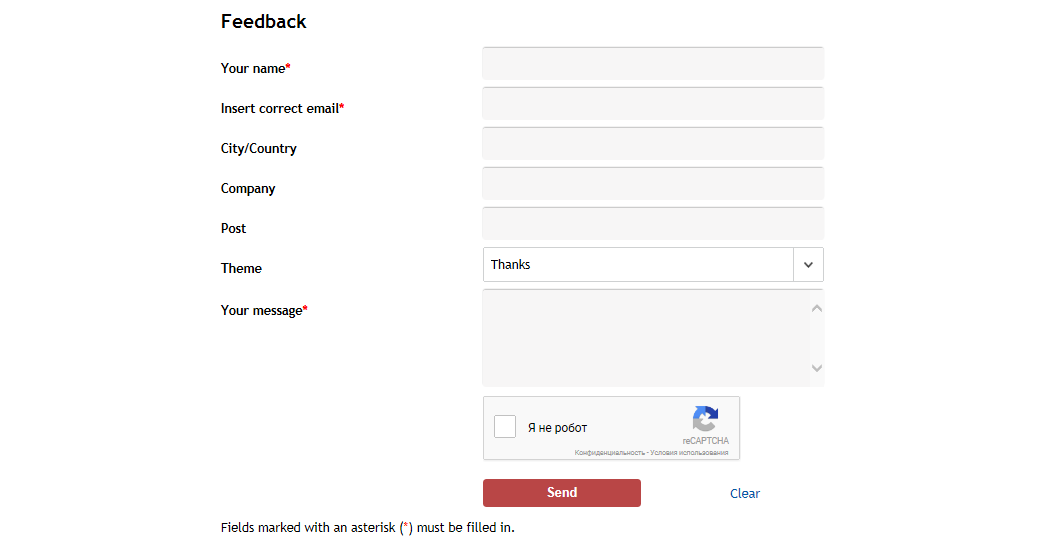
-
fill in the fields of the feedback page;
Notice: Fields marked with “*” are required. - click Send Button.